6 Deal Health Signals to Flag At-Risk Pipeline and Run Better Reviews [Framework]


Pipeline rarely slips all at once. It slips one weak next step, one ghosted thread, and one pushed close date at a time—until the forecast misses and everyone acts surprised.
The fix isn’t more rep opinion. It’s a consistent set of deal health signals tied to what’s actually happening in Salesforce: activity completeness, buyer engagement, stage momentum, and methodology compliance.
This framework breaks down six signals to inspect on every opportunity, the warning triggers to automate, and the pipeline review workflow managers can use to coach deals forward instead of collecting status updates.
[banner type="download" url="https://www.weflow.ai/content/pipeline-management-guide" text="Deal Insights & Pipeline Management Best Practices" subtitle="Deal health checklist, next-step prompts, multi-threading review, and pipeline warning signals." button="Download now"]
Deal health signals: spot pipeline risk before deals slip
If your pipeline review starts with “How do you feel about this one?”, you’re already behind. Rep sentiment matters, but it’s also where optimism, missing CRM updates, and happy-ears forecasting creep in.
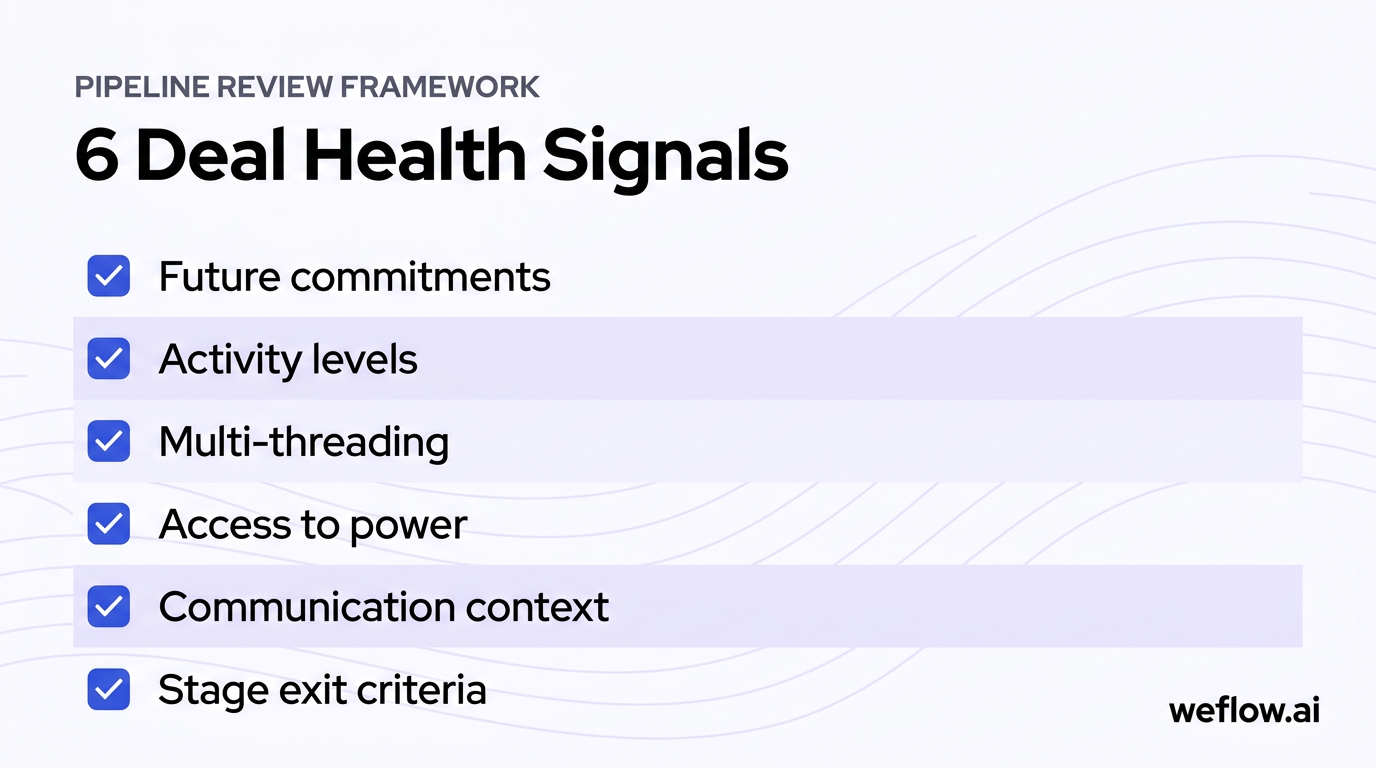
A better starting point is six objective deal health signals: future commitments, activity levels, multi-threading, access to power, communication context, and stage exit criteria. Together, they separate fact from fiction in the forecast because each signal can be checked against Salesforce data, buyer behavior, or both.
These signals should be the baseline for any pipeline review. Before you debate close probability or commit status, make sure the deal meets the minimum conditions for real momentum.
Identify firm next steps and meetings
Healthy deals have a clear future commitment on the calendar. “I’ll follow up next week” is not a next step—it’s a placeholder. A hard calendar invite for a technical review, commercial review, legal walkthrough, or decision meeting is what shows the buyer is still investing time in the process.
When there’s no scheduled next step, momentum usually stalls before the stage changes in Salesforce. That’s why it helps to track a dedicated next step date or next meeting date field on the Opportunity and display it in every pipeline view. Managers can then inspect forward motion without chasing reps for updates.
Takeaway tip: Treat “no future meeting on the calendar” as a warning by default—especially for current-quarter deals.
Review account activity and touchpoints
Deal activity tells you whether communication is active, one-sided, or fading. Look at volume and velocity across emails, meetings, call recordings, redlines, and other buyer touchpoints—not just whether the rep logged a task.
What matters most is activity from both sides. A rep can send eight follow-ups and still have a dead deal. Buyer replies, meeting attendance, and document exchanges are stronger indicators because they show the prospect is still doing work on their side.
Email velocity benchmark: On active deals, look for roughly 6-8 total emails per week, with at least 3 coming from the prospect. If outbound activity is high but inbound activity is flat, the deal may look busy in Salesforce while momentum is actually weakening.
Verify multi-threaded buyer engagement
Single-threaded deals fail quietly. Everything can look fine until the sole champion changes roles, goes on leave, or loses influence—and then the deal has no path forward. That’s why healthy opportunities include active engagement from multiple contacts across the buying committee.
In Salesforce, that means tracking Opportunity Contact Roles well enough to answer two questions fast: how many people are engaged, and what role does each person play? Multi-threading lowers concentration risk and gives the rep more than one path to keep the deal moving. If a deal depends on one contact only, it’s less stable than the forecast suggests.
Confirm direct access to decision makers
Multi-threading alone isn’t enough if all the activity sits with users and none of it reaches power. A deal can show strong email volume, frequent meetings, and multiple contacts—then stall in procurement or budget approval because the rep never got to the person who recommends the purchase or the person who signs off on it.
Use Contact Roles, titles, and meeting attendees in Salesforce to verify that the right level of authority is engaged for the current stage. A simple coaching move for reps is to ask their champion for access in a way that helps, not pressures: “Would it make sense to bring in your VP of Finance for the commercial review so we can answer approval questions early?” That keeps the champion aligned while expanding access to power.
Analyze communication context and sentiment
High activity doesn’t mean healthy activity. A deal with 20 emails can still be in trouble if the thread is a loop of pricing objections, delayed legal review, or internal buyer confusion. Volume needs context.
Managers should skim the latest email thread, meeting summary, or call transcript to understand what’s actually happening. You don’t need to watch every recording end to end. Usually the last buyer reply, the most recent meeting summary, and one earlier call are enough to spot whether the rep is advancing the deal, repeating old objections, or missing new risk.
Validate sales methodology exit criteria
Every deal should also pass your team’s methodology test. Whether you use MEDDICC, MEDDPICC, SPICED, or BANT, those fields create a shared language for reps and managers to inspect deal health without arguing from memory.
If your stage says “Proposal” but the Economic Buyer field is empty, the Decision Process is vague, or the pain isn’t documented, the stage is ahead of reality. In Salesforce, that’s where custom Opportunity fields, stage-level validation rules, and required field checks help. Methodology fields turn “I think this is close” into “the exit criteria are met” or “they aren’t.”
Pipeline warning triggers: automate your deal risk detection
Manual inspection doesn’t scale across dozens or hundreds of open opportunities. Automated warnings do two things better: they remove emotion from pipeline reviews, and they make risk visible before a manager opens the deal record.
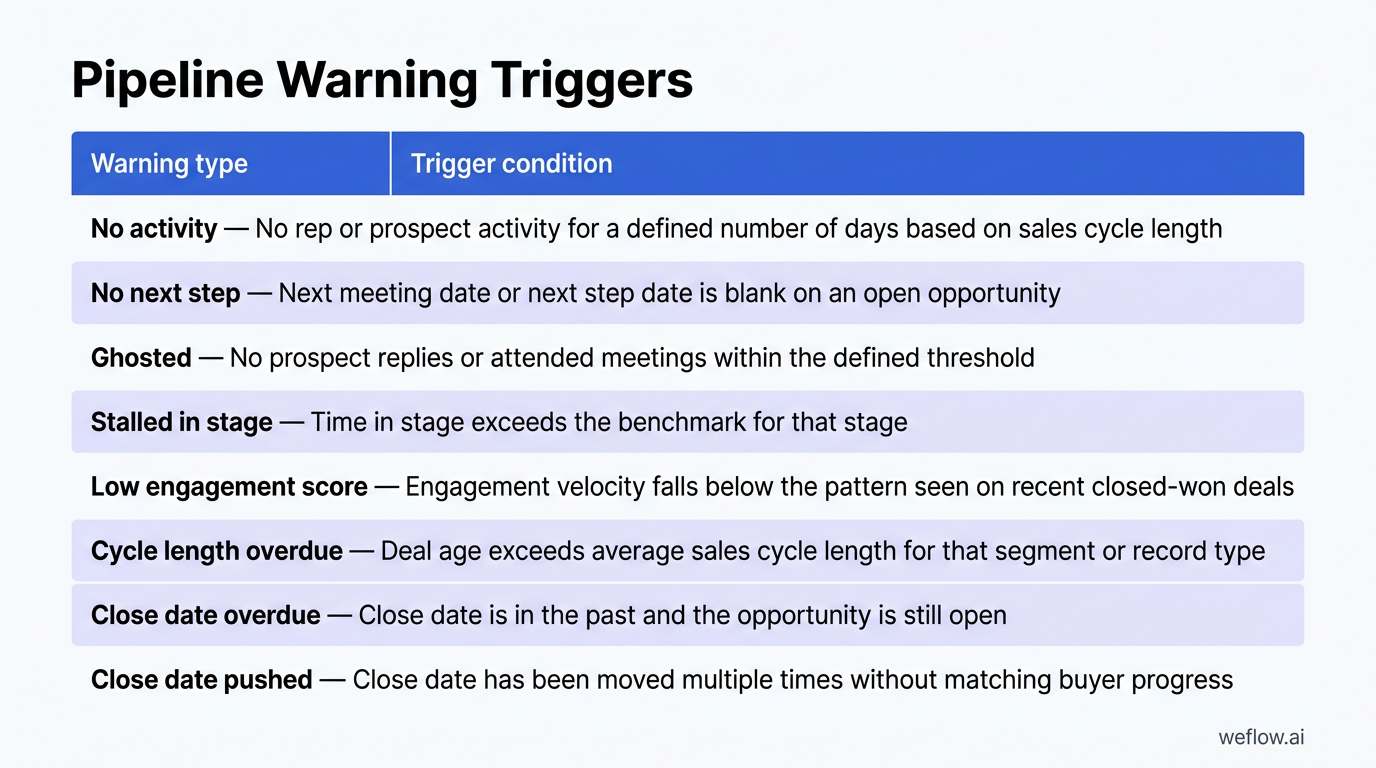
The goal is to translate the six health signals into time-based and activity-based rules inside Salesforce-native pipeline management. In Weflow, a Salesforce-native revenue AI platform, those warnings can read Salesforce Opportunity fields, Contact Roles, and engagement signals directly, then write updates back to Salesforce in real time. That matters for RevOps teams evaluating deployment effort or migrating from Gong—deeper field mapping and native write-back mean fewer workarounds, lower integration footprint, and setup measured in weeks, not quarters.
Warning type | Trigger condition |
|---|---|
No activity | No rep or prospect activity for a defined number of days based on sales cycle length |
No next step | Next meeting date or next step date is blank on an open opportunity |
Ghosted | No prospect replies or attended meetings within the defined threshold |
Stalled in stage | Time in stage exceeds the benchmark for that stage |
Low engagement score | Engagement velocity falls below the pattern seen on recent closed-won deals |
Cycle length overdue | Deal age exceeds average sales cycle length for that segment or record type |
Close date overdue | Close date is in the past and the opportunity is still open |
Close date pushed | Close date has been moved multiple times without matching buyer progress |
Track stalled stages and prospect ghosting
Time-based warnings are still some of the strongest predictors of deal risk because stage momentum is tightly tied to win rate. If the buyer stops responding or the deal stops moving, the close probability should drop long before quarter-end.
No activity: flag deals with no emails or calls for 7 days if your sales cycle is under 45 days, 14 days if it’s 45-60 days, and 21 days if it’s over 60 days.
Ghosted: flag deals with no prospect replies or attended calls for 4 days if the sales cycle is under 45 days, 7 days for 45-60 days, and 14 days for over 60 days.
Stalled in stage: flag deals that exceed your average time-in-stage benchmark for that stage.
Close date overdue: flag any open opportunity whose close date has already passed.
No next step: flag deals with no future meeting date or no documented next step.
Monitor engagement scores and deal age
Some deals don’t look risky at first glance—they just get quieter, older, and easier to excuse. That’s where aggregate metrics help. Compare current engagement velocity against the pattern from your last 12-24 months of closed-won deals, and flag opportunities that fall behind. If deal age is above your average sales cycle length, or the close date has been pushed two or three times, you’re often looking at forecast inflation rather than a deal that’s still on track.
Repeated close-date pushes are one of the clearest signs of a happy-ears forecast. The rep hears buyer interest, keeps the amount in commit or best case, and shifts the date instead of requalifying the opportunity against real behavior.
Deal review framework: inspect and rescue at-risk opportunities
A good deal review produces a decision or an action plan. A bad one turns into rep interrogation: “What’s the status?” “Did you follow up?” “Do you still think it closes?” That burns meeting time without changing deal outcomes.
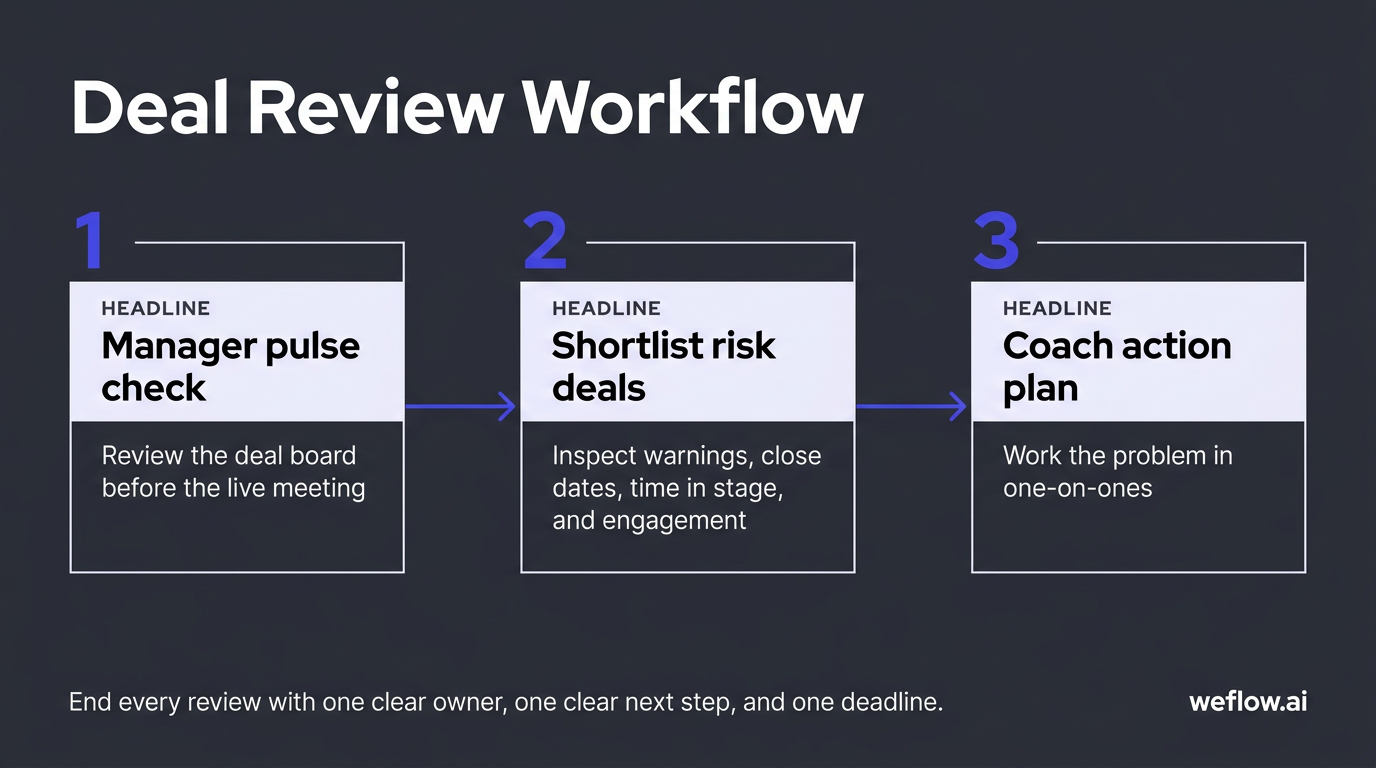
The better workflow starts with a manager pulse check, then drills into a short list of risk deals, then uses the live conversation to coach strategy and remove blockers. The point is to move opportunities forward, not confirm what’s already sitting in Salesforce.
Run a weekly pipeline pulse check
Review the team’s deal board before the live meeting, not during it.
Check warnings first: no activity, ghosted, stalled in stage, close date overdue, and low engagement score.
Scan close dates, time in stage, next meeting date, deal age, and close date pushed.
Shortlist only the deals that need discussion, executive help, or stage correction.
Leave clean deals out of the meeting so live time goes to coaching, not inspection.
Do this asynchronously. Managers who pre-triage the board save one-on-one time for decision-making instead of reading columns out loud.
Drill into specific deal insights
Once you’ve short-listed at-risk deals, inspect the evidence. Review the latest email thread, recent call summary, upcoming meetings, and Contact Roles. Check whether the active contacts match the titles you’d expect at that stage, and whether the rep’s notes line up with buyer behavior. One of the fastest checks is to compare the CRM stage against the last buyer message. If Salesforce says “Proposal” but the latest email says “We still need internal alignment on whether this is a priority,” the stage is probably ahead of reality.
Prep action plans for one-on-ones
If you spot issues before the meeting, tag the rep asynchronously in Salesforce comments, Chatter, or your manager notes field so they can gather context. Then use the live one-on-one to work the problem: who needs to be added, what objection needs a response, whether the deal should move backward, and where executive support could help.
A strong coaching question is: “What has to happen on the buyer’s side for this to close by Friday?” That forces the conversation back to buyer actions, not rep intention. End every review with one clear owner, one clear next step, and one deadline.
Pipeline view templates: organize deals for targeted coaching
Standard Salesforce list views rarely help managers coach deals. They’re usually cluttered, missing key fields, and built for record lookup rather than pipeline inspection. Purpose-built views make risk visible by filtering for a specific time horizon and showing only the fields needed for that workflow.
A clean pipeline view highlights what needs attention. A cluttered one hides it behind 20 columns of data no one uses.
Build a current quarter focus view
This view keeps reps focused on immediate revenue and shows which current-quarter opportunities need action now.
Filters: Opportunity Owner = Current User; Close Date = Current Quarter; Stage = open sales stages; Record Type = new logo and/or expansion.
Columns: Close Date, Created Date, Last Activity Date, Next Step, Next Meeting Date, Amount, Stage, Time in Stage, Deal Age, Total Activity Count.
Warnings: Close Date Overdue, No Activity, Time in Stage above threshold, Close Date Pushed above threshold, Deal Age above average cycle length.
This is the rep’s daily prioritization view. If it shows no next meeting, low recent activity, or an overdue close date, the rep knows where to spend time first.
Create a deal hygiene update view
This view is built for fast CRM updates, not coaching. Its job is to make field completion easy enough that managers can trust what they see later in reviews.
Filters: Opportunity Owner = Current User; Close Date = Current Quarter and Next Quarter; Stage = open sales stages; Record Type = new logo and/or expansion.
Columns: Close Date, Next Step, Amount, Stage, methodology fields such as Metrics, Economic Buyer, Decision Criteria, Decision Process, Paper Process, and Champion.
Warnings: Close Date Overdue, No Next Step, required methodology fields empty, stage exit criteria incomplete.
If you want accurate forecasting, make hygiene low-friction. Sales reps won’t maintain six different Salesforce screens, but they will update key fields if they can do it in one view with inline editing and clear missing-data signals.
Set up a dedicated deal review view
This is the manager’s main coaching and inspection view. It should make it easy to move from team forecast inspection to individual rep coaching without rebuilding filters each time.
Filters: Close Date = Current Quarter; Stage = selected open stages; Opportunity Owner = All; Record Type = new logo and/or expansion.
Columns: Warning, Engagement Score, Amount, Close Date, Close Date Pushed, Stage, Time in Stage, Opportunity Owner, Deal Age, Total Activity Count.
Warnings: No Activity, Ghosted, Close Date Overdue, Time in Stage above threshold, Close Date Pushed above threshold, Deal Age above average cycle length.
Grouping and sorting: Group by Opportunity Owner; sort by Close Date ascending, then Amount descending.
Grouping by owner lets a manager scan team-wide risk, then move straight into one-on-ones with the same dataset. If you’re migrating from Gong, this is also where a Salesforce-native setup helps most: the review view can read native Opportunity fields, Contact Roles, and custom methodology fields directly instead of depending on shallow sync logic or manual workarounds.
FAQ
How do you measure deal health accurately?
Measure deal health with objective CRM data, not rep confidence alone. The strongest baseline is a mix of scheduled next steps, buyer activity velocity, multi-threaded engagement, access to decision-makers, and methodology exit criteria stored on the Opportunity. When those signals disagree with the forecast category, trust the signals first and requalify the deal.
What is a good email reply rate for sales?
For active deals, a healthy benchmark is roughly 6-8 total emails per week, with at least 3 coming from the prospect. That’s not a universal rule for every segment, but it’s a useful starting point because buyer replies matter more than rep send volume. If activity is mostly outbound, the deal may be active in Salesforce but weak in reality.
How often should managers run deal reviews?
Weekly is the right cadence for most teams. Managers should inspect the board asynchronously first, then use one-on-ones or live team reviews to work only the deals that show real risk. That keeps the meeting focused on coaching, stage accuracy, and action plans instead of status collection.
What makes a sales deal truly multi-threaded?
A deal is truly multi-threaded when multiple stakeholders are actively engaged and at least one of them has buying authority. It’s not enough to list several contacts on the Opportunity if only one person attends calls or answers emails. A stable deal usually includes the day-to-day champion, key influencers, and the economic buyer or final approver.
.webp)
.webp)