What changed from Salesforce Notes & Attachments to Enhanced Notes?
Salesforce Notes is a native note-taking feature that lets users create, store, and share text-based records directly within Salesforce. The feature has evolved significantly since its original release, and understanding the differences between Classic Notes and Enhanced Notes determines whether your team gets full functionality or operates with outdated limitations.
Classic Notes & Attachments was Salesforce's original approach to storing notes alongside records. It worked, but the functionality was basic: plain text only, no formatting, limited sharing controls, and a 32 KB size limit per note. For teams that needed anything beyond simple text storage, it fell short.
Enhanced Notes, released with Lightning Experience, addressed these gaps. It's built on Salesforce's ContentDocument architecture, which means notes are treated as content objects with rich-text support, version history, and multi-record linking.
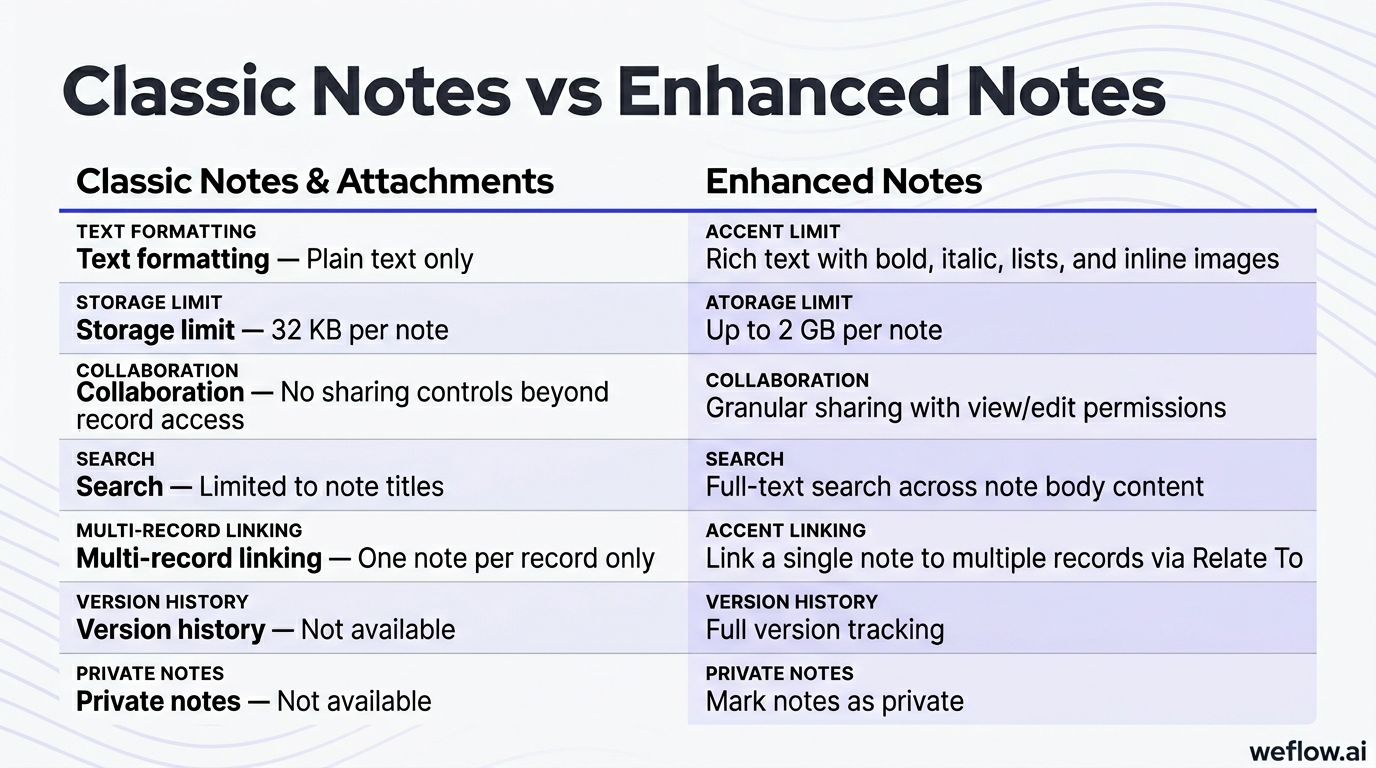
| Feature | Classic Notes & Attachments | Enhanced Notes |
|---|---|---|
| Text formatting | Plain text only | Rich text with bold, italic, lists, and inline images |
| Storage limit | 32 KB per note | Up to 2 GB per note (part of ContentDocument storage) |
| Collaboration | No sharing controls beyond record access | Granular sharing with view/edit permissions |
| Search | Limited to note titles | Full-text search across note body content |
| Multi-record linking | Not supported—one note per record only | Link a single note to multiple records via “Relate To” |
| Version history | Not available | Full version tracking with the ability to view previous versions |
| Private notes | Not available | Mark notes as private to restrict visibility to the owner |
Some orgs still run Classic Notes if the admin hasn't enabled Enhanced Notes in Setup. If your team sees plain text editors and can't link notes to multiple records, you're likely still on Classic.
One more consideration: after the upgrade, Notes and Files become separate in Salesforce. Enhanced Notes live in the ContentNote object (a specialized version of ContentDocument), while files remain in the standard ContentDocument/ContentVersion structure. Your existing attachments don't automatically become Enhanced Notes—they require migration.
How to enable and set up Enhanced Notes in Salesforce (step-by-step)
Enable Notes in Setup
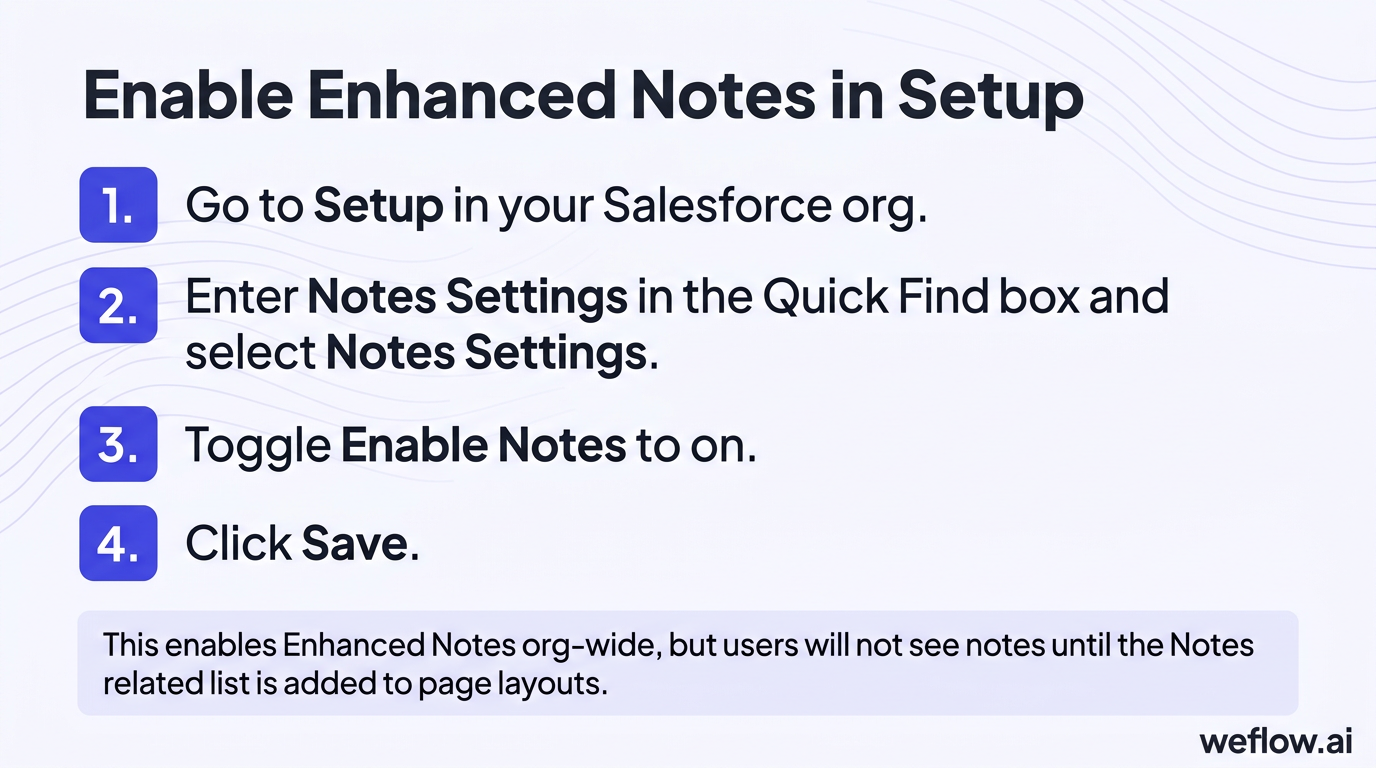
- Go to Setup in your Salesforce org.
- Enter “Notes Settings” in the Quick Find box and select Notes Settings.
- Toggle Enable Notes to on.
- Click Save.
This enables Enhanced Notes org-wide, but it doesn't add the Notes related list to any page layouts. Users won't see the option to create notes until you complete the next step.
Add Notes to page layouts
For each object where you want notes available (Account, Contact, Opportunity, Lead, etc.):
- Go to Setup > Object Manager.
- Select the object (e.g., Account).
- Click Page Layouts in the left sidebar.
- Open the relevant page layout for editing.
- In the layout editor, find Related Lists in the element palette.
- Drag Notes into the Related Lists section of the layout.
- Click Save.
Repeat for each object and each page layout assignment. If you have multiple page layouts per object (e.g., different layouts for Sales vs. Service), add Notes to each layout where you want it available.
Migrate from Classic Notes to Enhanced Notes
If your org has existing Classic Notes, they won't automatically convert. Salesforce provides a free migration tool on AppExchange.
- Install the Notes and Attachments Migration tool from Salesforce AppExchange.
- Open the app from the App Launcher.
- Select the objects containing notes you want to migrate.
- Run the migration. The tool converts plain-text Classic Notes to Enhanced Notes and maintains the parent record relationships.
Migration limits to know:
- 200,000 documents per 24-hour period—plan accordingly for large orgs.
- Classic Notes remain in your org after migration. You can delete them after verifying successful conversion, but test first.
- Once migration is complete and verified, consider disabling Classic Notes (Setup > Notes Settings > uncheck “Enable Notes in Classic”) to prevent users from creating new plain-text notes.
For detailed migration instructions, refer to Salesforce's migration guide.
Salesforce note-taking best practices for sales teams
Use a consistent note structure
Unstructured notes become useless within days. Adopt a template that your entire team follows:
Recommended note template:
- Title convention: “Meeting – [Customer Name] – [YYYY-MM-DD]” (e.g., “Meeting – Acme Corp – 2026-04-25”)
- Attendees: List everyone on the call from both sides
- Key points: 3-5 bullet points covering what was discussed
- Decisions: Any commitments made or decisions reached
- Next steps: Each action item with an owner and deadline (e.g., “Send pricing proposal – Sarah – 2026-04-30”)
A consistent structure makes notes searchable, readable by other team members, and useful during deal handoffs or manager reviews.
Link notes to multiple records
Enhanced Notes supports multi-record linking through the “Relate To” field. A single meeting note can connect to:
- The Contact who attended
- The parent Account
- The related Opportunity
To add relationships, open the note, click the “Relate To” dropdown, and select additional records. This ensures the note appears in the related list for all relevant records—your colleague reviewing the Account sees the same note that appears on the Opportunity.
Without multi-record linking, notes get orphaned on a single record, and critical context doesn't surface during deal reviews or handoffs.
Write notes within 24 hours
Note accuracy degrades quickly. Details you remember clearly right after a call become vague by the following week. Set a team standard: notes must be created within 24 hours of any customer interaction.
Some teams build this into their daily rhythm—reps block 15 minutes at the end of each day to document all calls from that day. Others create notes immediately after each call before moving to the next task.
How to use Salesforce Notes on mobile
The Salesforce mobile app supports Enhanced Notes. Reps can create, edit, and view notes from the field without logging into the desktop experience.
To access notes on mobile:
- Open the Salesforce mobile app.
- Navigate to the record (Account, Contact, Opportunity).
- Scroll to the Notes related list.
- Tap the + button to create a new note or tap an existing note to view/edit.
The mobile editor supports the same rich-text formatting as desktop. For field reps who meet customers on-site, this eliminates the “I'll log it later” problem that leads to lost information.
How to troubleshoot common Salesforce Notes issues
Notes not visible to users
Cause: Permission configuration. Users need access to the ContentDocument object and the Notes related list must be added to their assigned page layout.
Fix:
- Verify the user's profile or permission set includes Read access to ContentDocument and ContentNote objects.
- Confirm the Notes related list appears on the page layout assigned to that user's profile.
- Check record-level sharing—if the parent record isn't shared with the user, related notes won't be visible either.
Notes not saving
Cause: Enhanced Notes isn't enabled in the org, or there's a storage limit issue.
Fix:
- Go to Setup > Notes Settings and confirm Enable Notes is toggled on.
- Check your org's file storage usage (Setup > Storage Usage). Enhanced Notes count against file storage, not data storage.
- If users see the Classic plain-text note editor instead of the Enhanced Notes editor, they're using Classic Notes—enable Enhanced Notes and add the new related list to layouts.
Notes linked to wrong records
Cause: User didn't use the “Relate To” feature or selected the wrong record.
Fix:
- Open the note and check the “Relate To” section to see all linked records.
- Remove incorrect relationships and add the correct ones.
- Train users on multi-record linking—many reps don't know this feature exists and create duplicate notes on each related record instead.
Difficulty reporting on notes
Cause: Enhanced Notes use the ContentNote object, which isn't available in standard report types.
Fix:
- Create a custom report type based on ContentDocument or ContentNote.
- Use SOQL queries for detailed analysis:
SELECT Id, Title, CreatedDate, CreatedById FROM ContentNote - To report on the relationship between notes and records, query ContentDocumentLink, which connects ContentNote to parent records.
- Third-party reporting tools like Tableau CRM can simplify note analytics if you need regular dashboards.
How to report on Salesforce Notes and track team adoption
Measuring note-taking behavior requires understanding Salesforce's content object model. Enhanced Notes live in the ContentNote object—a specialized subtype of ContentDocument. The ContentDocumentLink object tracks which records each note is related to.
Building note reports
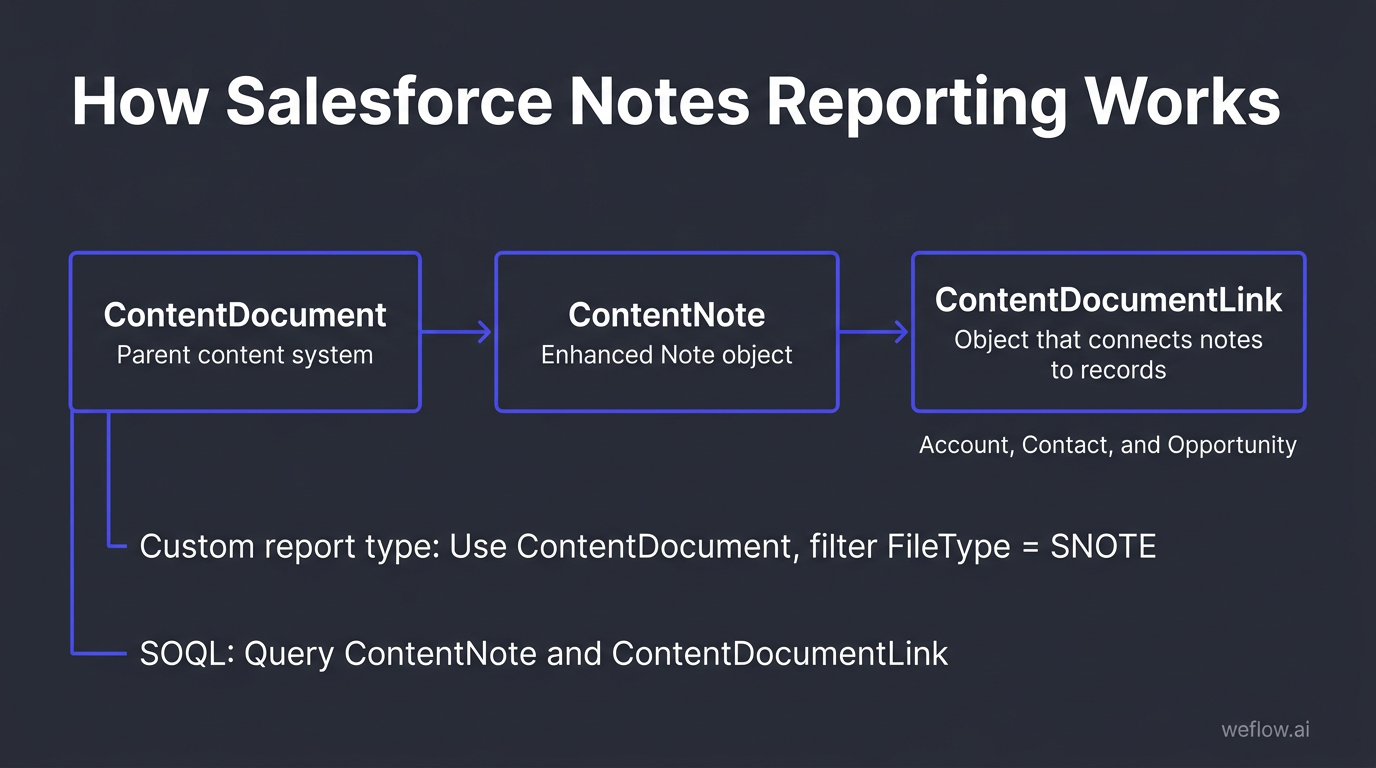
Standard Salesforce reports don't include ContentNote by default. You have two options:
- Custom report type: Create a report type with ContentDocument as the primary object. Filter where FileType = 'SNOTE' to isolate Enhanced Notes from other files.
- SOQL queries: For more flexibility, query directly:
SELECT Id, Title, CreatedDate, CreatedById FROM ContentNote WHERE CreatedDate = THIS_MONTH- To find notes linked to Opportunities:
SELECT ContentDocumentId FROM ContentDocumentLink WHERE LinkedEntityId IN (SELECT Id FROM Opportunity)
List views for notes
Create list views on the Notes object (accessible from the App Launcher) to give managers visibility into team activity:
- My Team's Notes This Week: Filter by CreatedById (members of a specific role) and CreatedDate = THIS_WEEK.
- Notes Without Related Records: Identify orphaned notes that should be linked to Opportunities or Accounts.
- Recently Modified Notes: Track active note-taking behavior across the team.
Key metrics to track
- Notes created per rep per week: Establishes baseline activity levels. A rep averaging 15 customer calls but creating two notes has a documentation gap.
- Percentage of Opportunities with notes: Measures whether deals have proper documentation. Target: 80%+ for active pipeline.
- Time from meeting to note creation: Compare note CreatedDate to the related Event's ActivityDateTime. Gaps longer than 24 hours indicate process breakdown.
- Notes per closed-won vs. closed-lost: Analyze whether well-documented deals close at higher rates—useful for coaching conversations.
How Weflow automates Salesforce note-taking with templates and sync
Enhanced Notes improved on Classic Notes, but it still requires manual effort. Reps have to remember to create notes, structure them consistently, and link them to the right records. Salesforce doesn't offer note templates, methodology alignment, or automatic CRM field updates based on note content.
Weflow, a Salesforce-native revenue AI platform, fills these gaps. It captures meetings automatically and converts conversation content into structured notes that sync directly to Salesforce records—without manual data entry.
Key capabilities:
- Note templates tied to sales methodologies: Pre-built templates for MEDDIC, BANT, SPICED, and custom frameworks. Reps don't decide what to capture—the template structures it automatically based on what was discussed.
- Automatic sync to Salesforce records: Notes write directly to the related Opportunity, Contact, and Account. No manual linking required.
- Inline Salesforce field updates: Conversation intelligence identifies changes to deal stage, next steps, or MEDDIC fields and updates Salesforce automatically. A rep discussing “we've identified the economic buyer” triggers an update to the appropriate field without the rep opening Salesforce.
- Team-wide visibility: Notes are immediately visible to managers and other team members through the Weflow interface and within Salesforce, ensuring handoffs and deal reviews have complete context.
For RevOps teams focused on data completeness and CRM adoption, automated note-taking eliminates the gap between customer conversations and Salesforce records.
Frequently asked questions about Salesforce Notes
What are Salesforce Enhanced Notes?
Enhanced Notes is Salesforce's rich-text note-taking feature in Lightning Experience. It replaced Classic Notes & Attachments and supports text formatting, inline images, multi-record linking, version history, and private notes. Notes are stored in the ContentNote object.
How do I enable Enhanced Notes in Salesforce?
Go to Setup, search for “Notes Settings,” and toggle Enable Notes on. Then add the Notes related list to page layouts for each object (Account, Contact, Opportunity) via Object Manager > Page Layouts > Related Lists.
What is the difference between Notes & Attachments and Enhanced Notes in Salesforce?
Notes & Attachments (Classic Notes) supported only plain text with a 32 KB limit per note. Enhanced Notes adds rich-text editing, up to 2 GB storage per note, multi-record linking via “Relate To,” full-text search, version history, and granular sharing controls including private notes.
How do I search for notes in Salesforce?
Use the global search bar in Lightning Experience to find notes by keyword—Enhanced Notes supports full-text search of note body content. You can also create list views on the ContentNote object to filter notes by owner, creation date, or linked records.
Can I make notes private in Salesforce?
Yes. When creating or editing a note, toggle the “Private” checkbox to restrict visibility to yourself. By default, notes are visible to anyone with access to the parent record. Private notes are only accessible by the note owner.
How do I migrate from Classic Notes to Enhanced Notes?
Install the free Notes and Attachments Migration tool from Salesforce AppExchange. Select the objects you want to migrate, run the tool, and stay under the 200,000-document daily limit. After verifying successful migration, you can delete converted Classic Notes and disable Classic Notes creation in Setup.
What is the ContentNote object in Salesforce?
ContentNote is the Salesforce object that stores Enhanced Notes. It's a subtype of ContentDocument—the same system that powers Salesforce Files. You can query ContentNote via SOQL and use ContentDocumentLink to report on relationships between notes and parent records.
How do I take effective sales notes in Salesforce?
Use a consistent structure for every note: include a clear title with customer name and date, list attendees, capture key discussion points, document decisions made, and record next steps with owners and deadlines. Link each note to all relevant records (Contact, Account, Opportunity) and create notes within 24 hours of the interaction.
{
  "@context": "https://schema.org",
  "@type": "FAQPage",
  "mainEntity": [
    {"@type": "Question", "name": "What are Salesforce Enhanced Notes?", "acceptedAnswer": {"@type": "Answer", "text": "Enhanced Notes is Salesforce's rich-text note-taking tool in Lightning Experience. It replaced the older Notes & Attachments feature and supports formatting, images, multi-record linking, version history, and private notes."}},
    {"@type": "Question", "name": "How do I enable Enhanced Notes in Salesforce?", "acceptedAnswer": {"@type": "Answer", "text": "Go to Setup, search for 'Notes Settings,' and toggle Enable Notes on. Then add the Notes related list to your page layouts for each object via Object Manager > Page Layouts > Related Lists."}},
    {"@type": "Question", "name": "What is the difference between Notes & Attachments and Enhanced Notes in Salesforce?", "acceptedAnswer": {"@type": "Answer", "text": "Notes & Attachments (Classic Notes) supported only plain text with a 25 MB attachment limit. Enhanced Notes adds rich-text editing, 2 GB storage per record, multi-record linking, full-text search, version history, and granular sharing controls."}},
    {"@type": "Question", "name": "How do I search for notes in Salesforce?", "acceptedAnswer": {"@type": "Answer", "text": "In Lightning Experience, use the global search bar to find notes by keyword. You can also create list views on the ContentNote object to filter notes by owner, creation date, or associated record."}},
    {"@type": "Question", "name": "Can I make notes private in Salesforce?", "acceptedAnswer": {"@type": "Answer", "text": "Yes. When creating a note, toggle the 'Private' checkbox to restrict visibility to yourself. By default, notes are visible to anyone with access to the parent record."}},
    {"@type": "Question", "name": "How do I migrate from Classic Notes to Enhanced Notes?", "acceptedAnswer": {"@type": "Answer", "text": "Install the free Notes and Attachments Migration tool from Salesforce AppExchange. Select the objects you want to migrate, stay under the 200,000-document daily limit, and run the migration."}},
    {"@type": "Question", "name": "What is the ContentNote object in Salesforce?", "acceptedAnswer": {"@type": "Answer", "text": "ContentNote is the underlying object for Enhanced Notes. It stores note content as part of the ContentDocument system and can be queried via SOQL or included in reports."}},
    {"@type": "Question", "name": "How do I take effective sales notes in Salesforce?", "acceptedAnswer": {"@type": "Answer", "text": "Use a consistent structure: include the meeting date, attendees, key discussion points, decisions made, and next steps with owners and deadlines. Link each note to all relevant records and write notes within 24 hours."}}
  ]
}



.avif)